In this Chapter, I will go over the best Free and Open Source software that is available for either playing or analyzing Chess. There are two command-line Chess Engines that I will recommend, two Graphical User Interface Programs that can use those engines, and two more utility programs that are specifically about managing Chess databases. Finally, I will mention how you can use these tools to analyze the games you have played.
Stockfish
I will not be covering how to install Stockfish because that is a separate matter, depending on your operating system. However, I will explain how Stockfish can be used from the command line once it is downloaded and placed in your path.
However, you can easily download Stockfish and find a detailed guide for installing it on your platform.
Usage at the command line
Although the official stockfish documentation is very good at helping people to set up Stockfish with most GUI software, there is a way to play directly by running commands from a terminal or command prompt.
After downloading and installing the engine by whatever means you used, just type “stockfish” at the command line or adjust the name to whatever your executable is named
You will probably see a message similar to “Stockfish 17 by the Stockfish developers (see AUTHORS file)”.
Simply type d and press enter. You will probably get something like this:
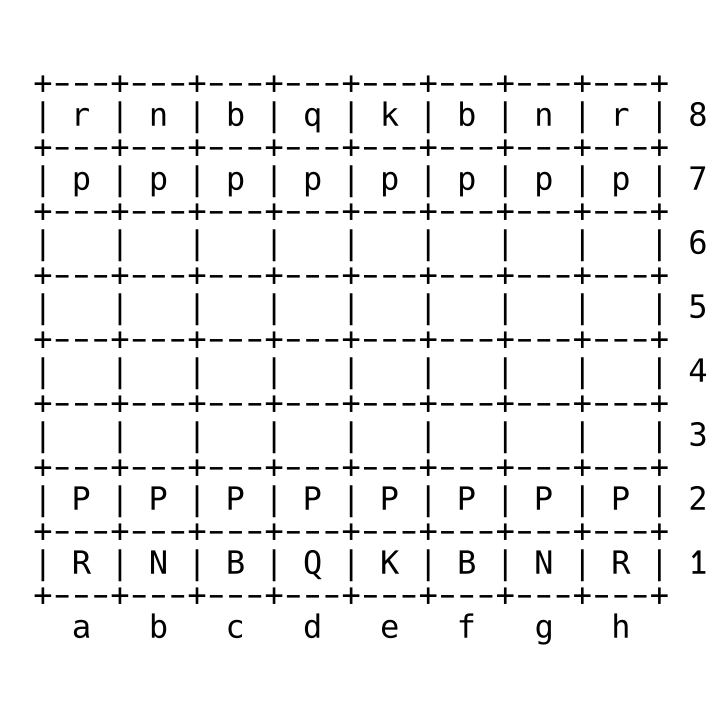
That is because d is the display command and it will show a text representation of the Chess board. The position can be changed with a certain format. For example
position startpos moves d2d4
Will move the pawn from d2 to d4. This is my favorite starting move. So if you use the d command again. You will see that the pawn has now moved!

Now that we have made our first move as white, we need to tell the computer to search for a move to reply with. For that we can enter go depth 1 and it will come up with a quick response. For example if we get the result “bestmove d7d5”. This means that the engine has decided that moving black’s Queen pawn is the best move. So we add this result to the end of our last command.
position startpos moves d2d4 d7d5

As you can see, both pawns have moved. However, this is not the preferred way for most people to use the engine. However, I did this as an example to show you what a Chess GUI has to do behind the scene to operate the engine and get back moves from it.
Fairy Stockfish
I would like to mention briefly that Fairy-Stockfish is a version of Stockfish that support all of the Chess variants available on lichess.org and even more. I have not mastered the use of it from the command line, but I have confirmed that it works with Xboard, which is the next program I am recommending.
Xboard
You can use XBoard/WinBoard to run not only Stockfish, but many other Chess engines that are less popular. I find the interface of the program to be a little bit confusing. However, I have created convenient commands to use which allow me to play Chess, Shogi, or Xiangqi with it on my Windows 11 laptop.
winboard -fcp "C:\stockfish\fairy-stockfish.exe" -variant normal -xclock -depth 1
winboard -fcp "C:\stockfish\fairy-stockfish.exe" -variant shogi -xclock -depth 1
winboard -fcp "C:\stockfish\fairy-stockfish.exe" -variant xiangqi -xclock -depth 1
If you are playing XBoard, the Linux version, you can change winboard to xboard and change the path of fairy-stockfish to wherever you have it installed.
Although I have less experience using Xboard than the other recommended software in this book, XBoard when combined with Fairy Stockfish allows you to play more types of Chess Variants than any other program that I know about.
Also, if you beat Fairy Stockfish at depth 1 using commands similar to the above, then try changing that number to something higher and then then the computer will search deeper and find even better moves to play against you. Beating it at full strength is impossible for a human player.
En Croissant
I recommend En Croissant for people who are only interested in playing standard Chess and want to analyze the games they have played on lichess.org or chess.com. It has a feature which can download all the rated games of a username of a player on those sites specifically. This means that if you play online on these sites, you can instantly obtain a database of your own games. You can use this to see how often you win or lose and what mistakes you are making.
It also allows you to download larger databases of games like Caissabase which are full of games from the top Chess Masters of the world. This allows you to see how really good Chess players can play and maybe learn some things from them! That’s what I try to do!
pgn-extract
Once you have a database of your own games, or perhaps games of other people, you may want to filter them by certain criteria. The program pgn-extract is exactly what you can do this with. It is a command line only program. You will have to read the documentation to know all of its options but here are some commands that I commonly use to keep track of my best wins.
These commands use the file “lichess_chastitywhiterose.pgn” which I downloaded directly from lichess.org. There is a built in export feature that allows you to select games of different time controls and/or variants and decide which ones to export to pgn file. pgn-extract can only handle standard chess games but it can sort them extremely fast. For example
This first command takes all of the games where chastitywhiterose was the white player and won the game by checkmate.
pgn-extract -Twchastitywhiterose -Tr1-0 lichess_chastitywhiterose.pgn -ochastitywhiterose_white_wins_lichess.pgn --checkmate
The second does the reverse and finds every time that chastitywhiterose played as black and then black won the game by checkmate.
pgn-extract -Tbchastitywhiterose -Tr0-1 lichess_chastitywhiterose.pgn -ochastitywhiterose_black_wins_lichess.pgn --checkmate
I have said for years that only games ending in a checkmate are reliable information. If you opponent timed out because they fell asleep or got distracted, that doesn’t really feel like a win does it?
ChessX
The best currently available free and open source Chess database management program is ChessX. It allows you to open a pgn file and actually play through all the games with a graphical user interface. This is the best way to analyze your games and see visually where you made the mistakes. I have not full explored everything that the program can do but I read that it also has filtering capabilities similar to what you could have done with pgn-extract which I previously mentioned.
Possible Updates
I know there are infinitely more open-source Chess related programs out there that I have not had time to use or write about. If you know of any really good programs that are also open source, let me know and I can probably include them the next time I update this chapter!
 Chastity's Chess Challenge
Please leave me any comments or questions you have! I will update posts if necessary based on user feedback!